ReachMail Individual Campaign Reports provide you comprehensive data to help you make data driven decisions.
Individual Campaign Reports are a great way to view the results of previous mailings. This is where you can get detailed information on how your campaign performed. See reporting details for sent, delivered, opens, clicks, bounces, unsubscribes, and more.
Where To Find Campaign Reports
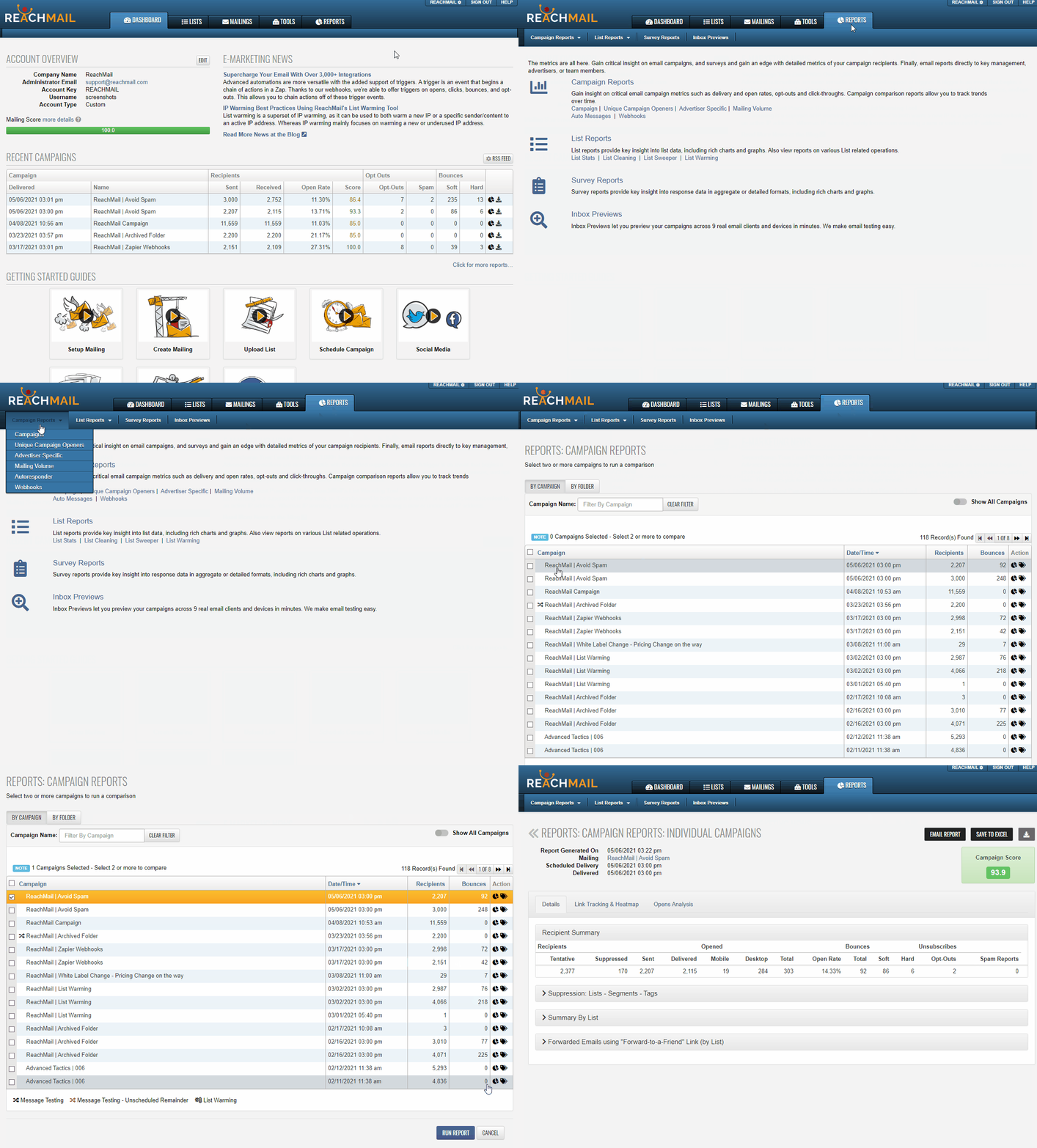
To access campaign reports:
- Click the Reports tab
- Select Individual Campaigns from the sub-navigation
On the Individual Campaign report screen, you can:
- Filter by campaign or folder
- Search for specific campaigns
To generate a report:
- Select the campaign name
- Click Run Report
Overview Tab
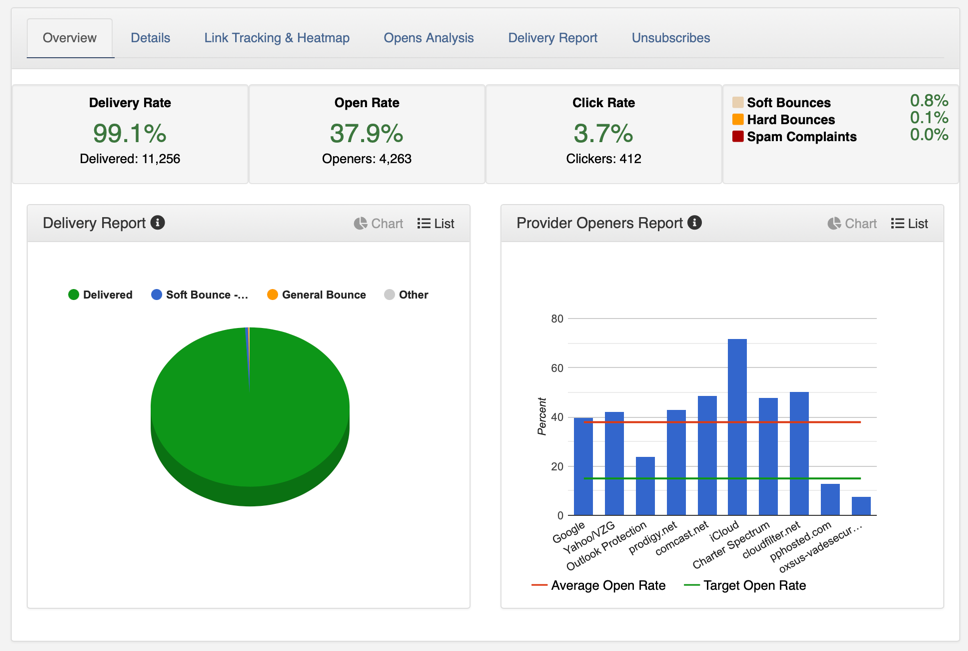
The Overview tab provides a quick summary of your campaign performance It displays key metrics such as:
- Delivery rate
- Opens
- Clicks
- Bounces
- Spam complaints
Two graphs are shown below the summary:
-
Delivery Report – compares delivered vs. undelivered (bounced) emails
-
Provider Openers Report – shows open rates by mailbox provider
Details Tab
The Details tab provides a summarized view of campaign statistics. The summary is broken down into:
-
Recipients – shows tentative, suppressed, sent, and delivered counts
-
Opened – displays mobile vs. desktop opens, total opens, and open rate
-
Bounces – includes soft bounces, hard bounces, and total bounces
-
Unsubscribes – shows opt-outs and spam reports received

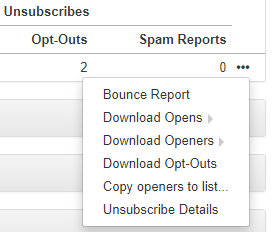
Click the ellipsis icon (...) to access more options. From the menu, you can:
- View the bounce report
- Download opens and openers
- Download opt-outs
- Copy openers to a list
- View unsubscribe details
- Click Summary By List to view recipient data broken down by each list used in the campaign
- This allows you to:
- Compare performance across lists
- Download data for individual lists

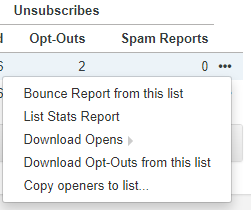
Click the ellipsis icon (...) next to a list to access more options. From the menu, you can:
- View the bounce report for the list
- Open the list stats report
- Download opens and opt-outs
- Copy openers to a list
The Forward-to-a-Friend feature tracks how your email was shared. It displays:
- The list name
- Number of forwards via email
- Shares on Facebook, LinkedIn, and Twitter

Link Tracking and Heatmap Tab
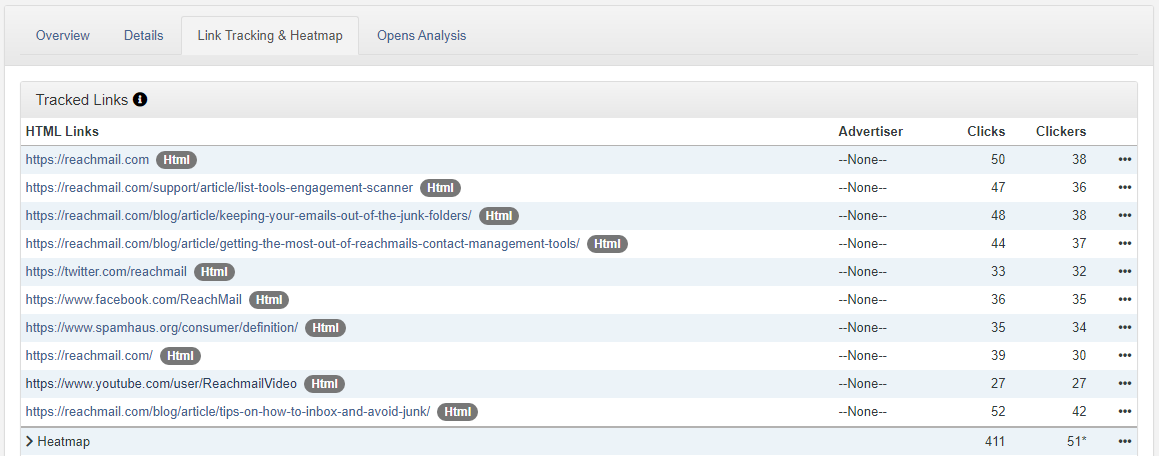
Select the Link Tracking and Heatmap tab to view detailed link performance. The first section displays all tracked HTML and Text links in the campaign. For each link, you’ll see:
- Associated advertiser
- Number of clicks
- Number of unique clickers
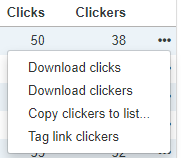
Click the ellipsis icon (...) to access additional options. From the menu, you can:
- Download clicks and clickers
- Copy clickers to a list
- Tag link clickers
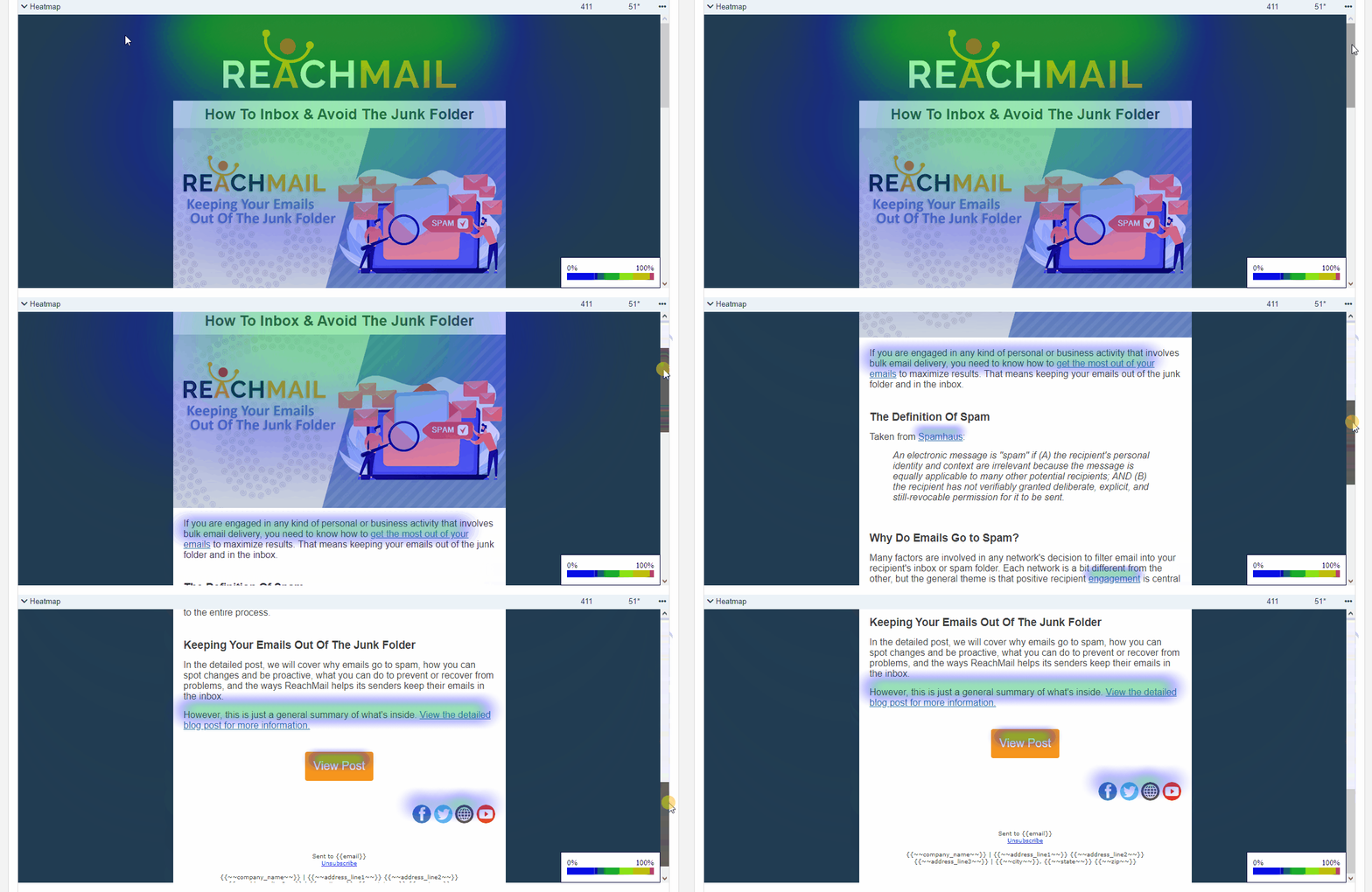
Below the detailed link report, the Heatmap visualizes user activity in your email. It shows:
- Which links are being clicked
- Where users are engaging the most
Use the heatmap to review and optimize your email content for better engagement
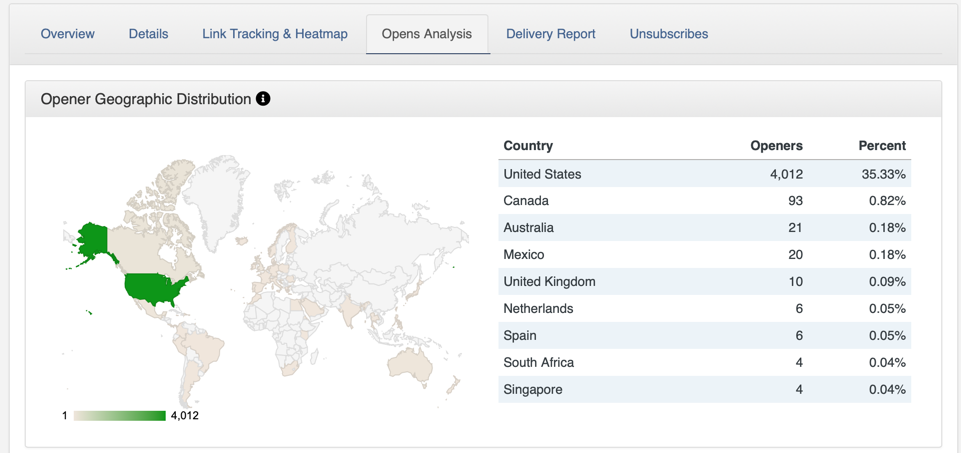
- Click Opens Analysis to view detailed open data
- The report includes:
-
Opener Geographic Distribution – shows where your openers are located (top 10 countries based on the most recent open)
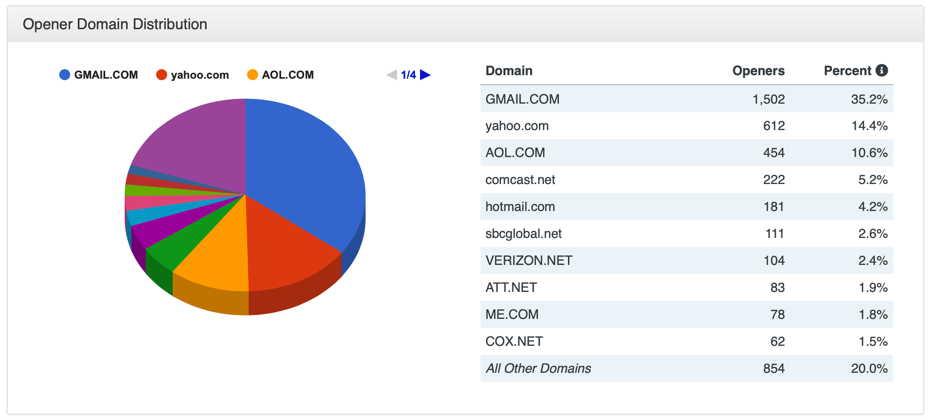
- Opener Domain Distribution
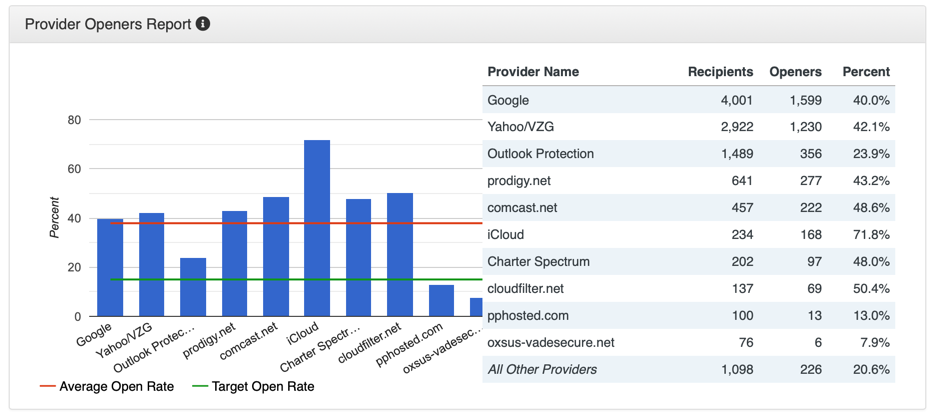
- Provider Openers Reporting
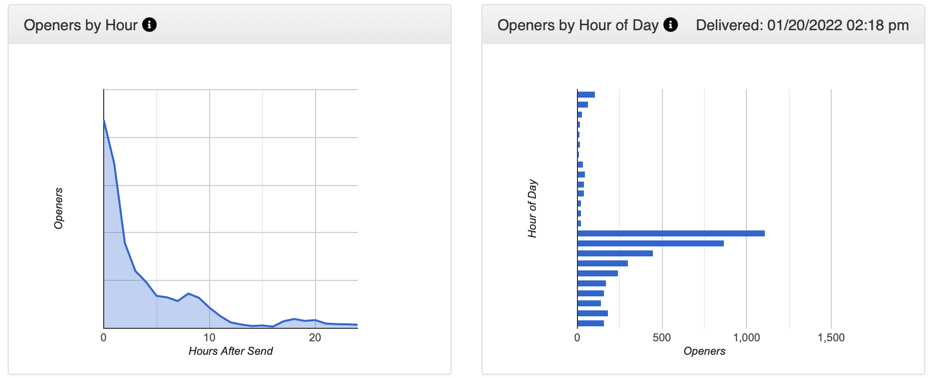
- Openers By Hour
- Openers By Day
-
Opener Geographic Distribution helps:
- Understand audience locations
- Target offers more effectively
Opener Domain Distribution shows the percentage of opens by each email domain. Helps you:
- Identify which domains have the most engagement
- Better tailor content for your audience
Provider Openers Report (paid plans only) shows open rates by mailbox provider. Helps you:
- Identify providers that may flag your emails as unsolicited
- Adjust your campaigns to improve deliverability
Openers By Hour & Openers By Hour Of Day
-
Openers By Hour shows how many recipients opened the campaign each hour (first 24 hours only)
-
Openers By Hour of Day tracks the time of day recipients opened your message
- Use this data to identify optimal sending times for better engagement
Delivery Report Tab
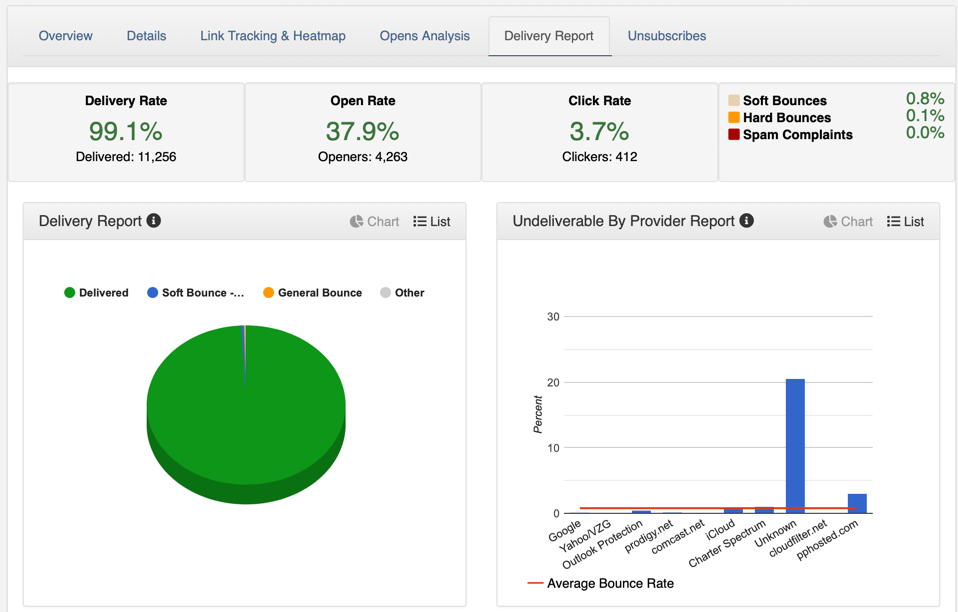
Delivery Report shows delivered vs. undelivered (bounced) recipients.
Undeliverable by Provider displays bounce rates by mailbox provider. Helps you:
- Identify which providers are rejecting your mail
- Diagnose potential issues such as mail blocks, spam traps, or content-related blocks
Below the delivery report and undeliverable by provider report you'll see a table of all the bounces within that campaign.
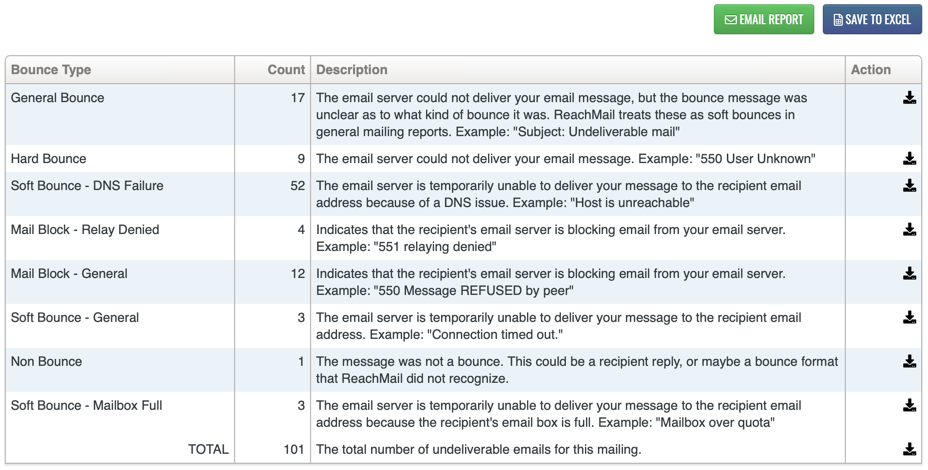
This separates each bounce by bounce type and allows you to download the details of each bounce or total bounces. Understanding your bounces can help you diagnose deliverability issues as they occur so you can resolve them before your next campaign.