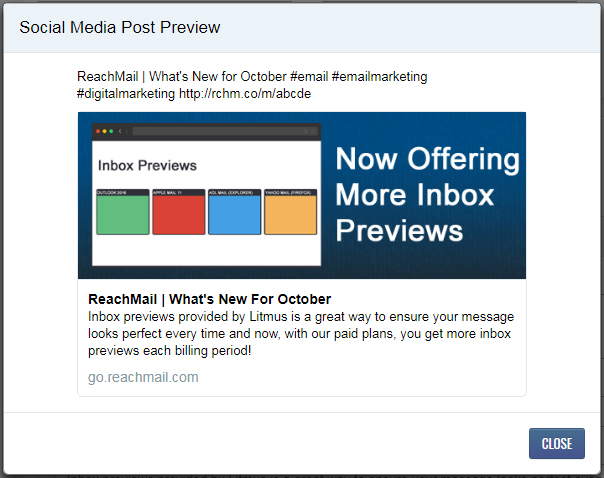
Link social media accounts to post campaigns directly from ReachMail’s Schedule & Send page with ease.
If you’ve already linked your social media accounts, you’ll have the option to post your campaign to social media from the Schedule & Send page. This allows you to share your campaign directly to your connected profiles and customize how the post appears.
- Go to the Schedule & Send page
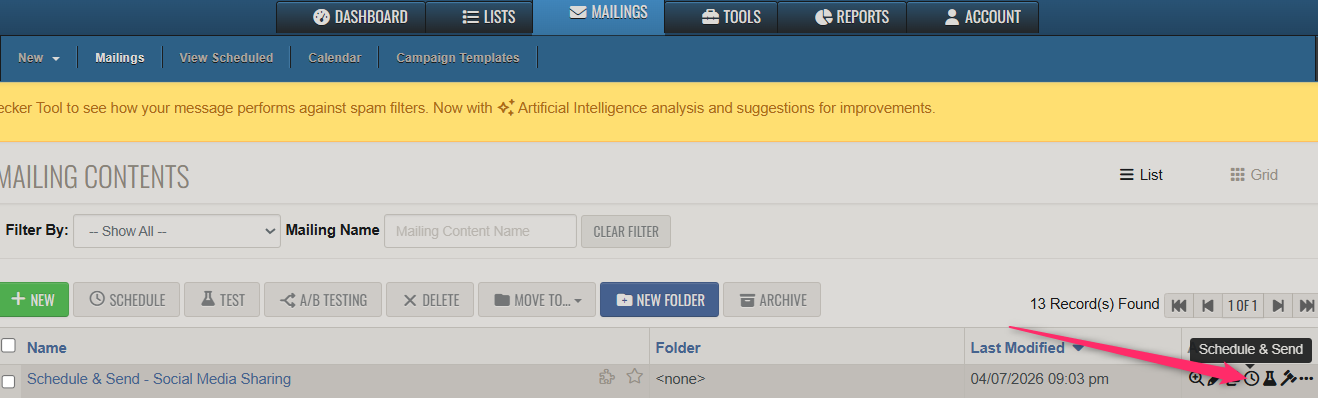
- On the left side, under Options, select Social
- View your active social media accounts
- Enable Post to Social Media
- Customize how your post will appear
- Proceed with sending your campaign
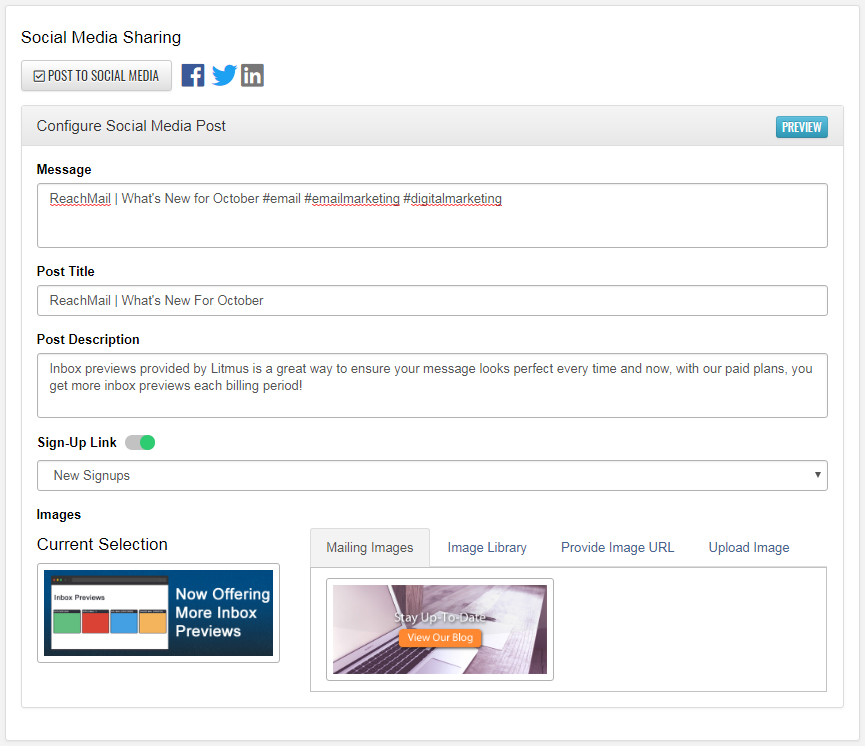
Customizing your Title, Post Text, and Images gives you control over how your post appears on social media. The system will try to pull suitable images from your campaign, but you can also choose your own. You also have the option to include a Sign-Up Link to help generate new subscribers.
- Edit the Title, Post Text, and Images
- Select an image from the mailing or click Image Library to choose another
- (Optional) Enable Sign-Up Link to add a signup URL to your post
- Click Preview (top right) to see how your post will appear