Directions on how to use the Footer Format Editor in ReachMail to customize and preview your email footers easily!
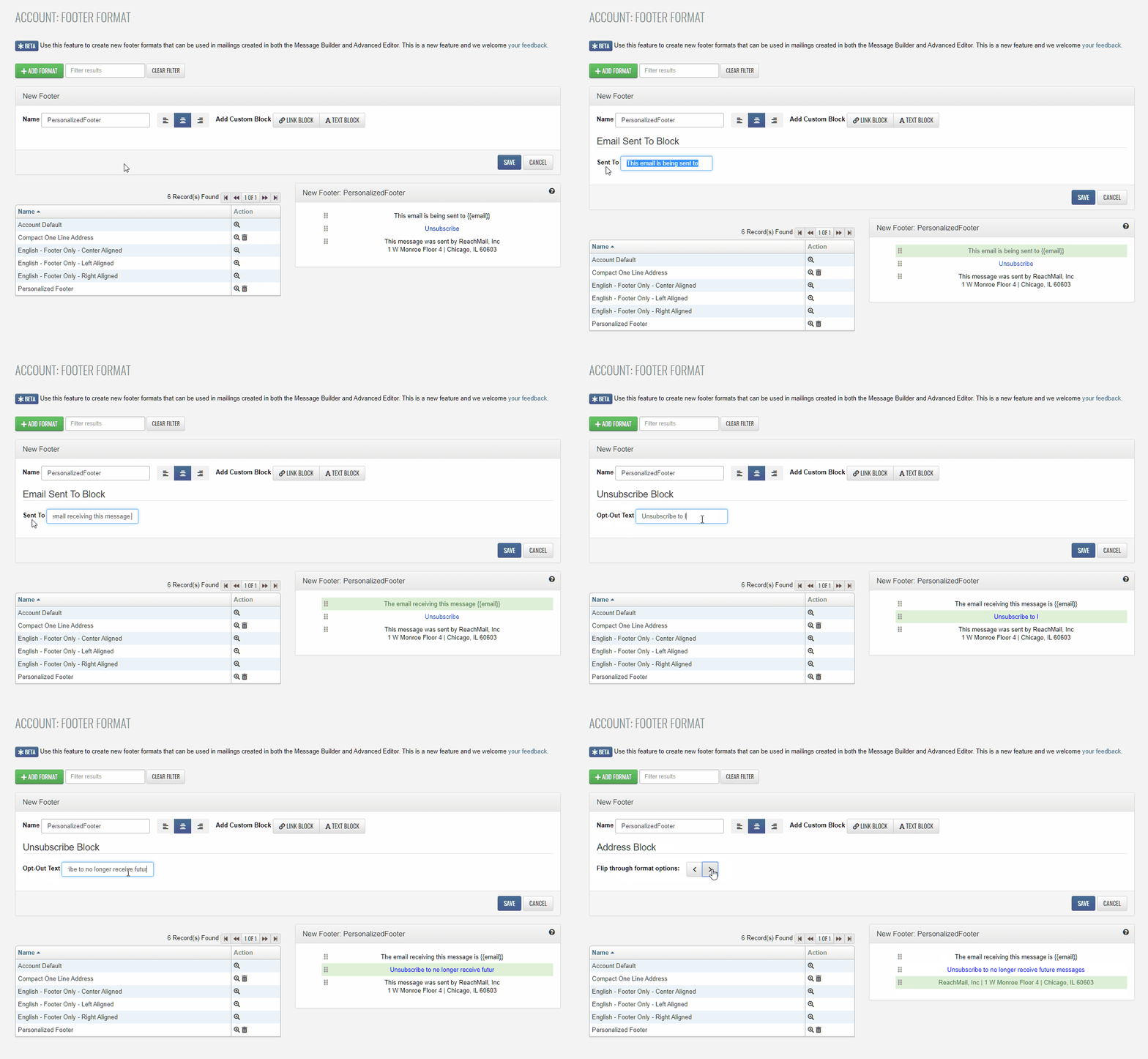
The Footer Format Editor allows you to customize the footer section of your emails so you have more control over how your messages look from top to bottom.
You can:
- Preview ReachMail's default footer formats
- Create and save custom footer layouts
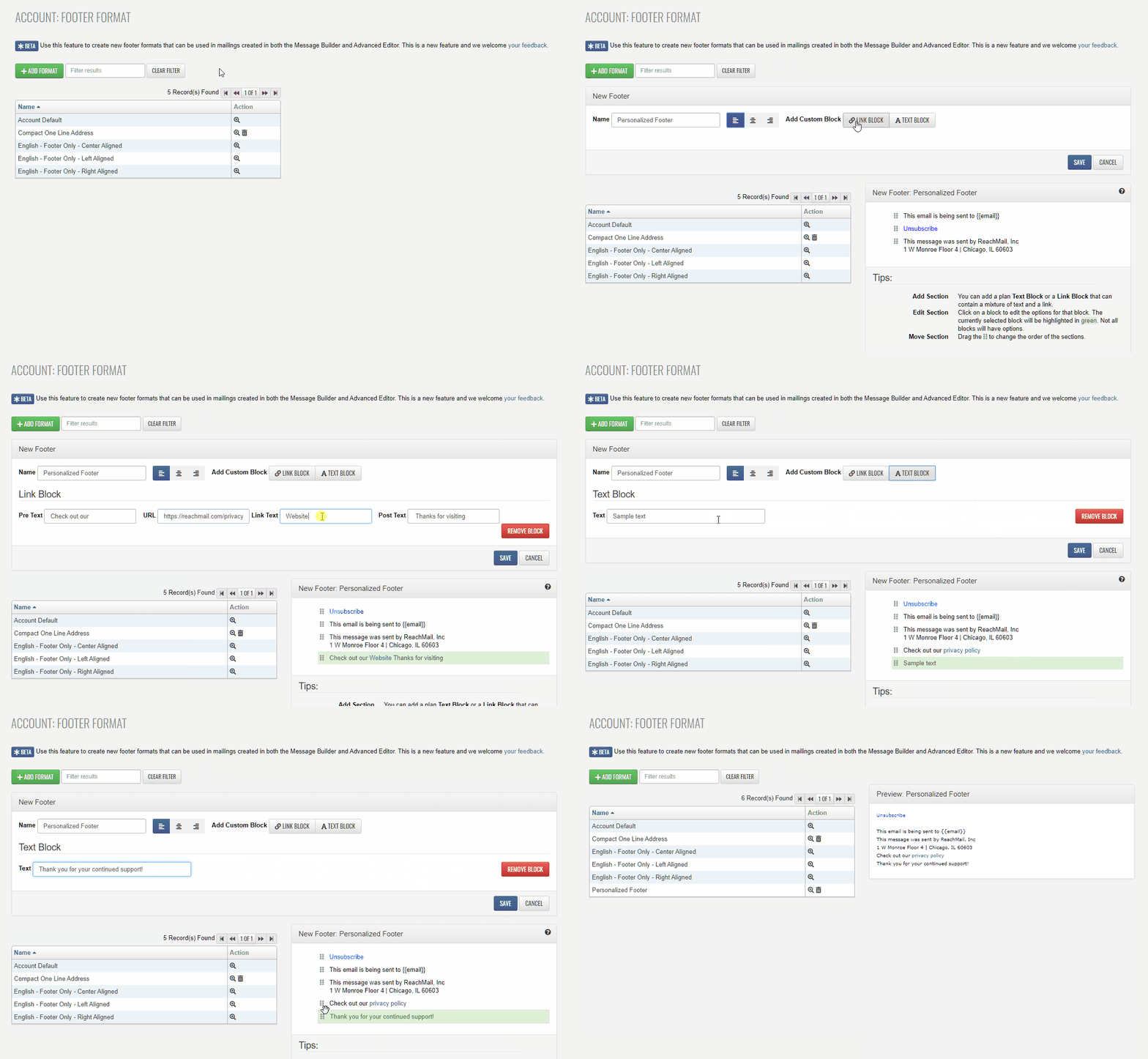
- Add links, text blocks, and HTML blocks
- Rearrange footer sections using drag and drop
- Customize unsubscribe, address, and sent-to formatting
Accessing the Footer Format Editor
To open the Footer Format Editor:
- Navigate to Account
- Select Campaign Settings
- Click Footer Format Editor
Creating a New Footer Format
To create a new footer:
- Click Add Format
- Enter a name for the footer
- Choose the alignment:
- Add and arrange footer blocks as needed
- Preview your footer
- Click Save
Available Footer Blocks
Link Block
Use a Link Block to add clickable links to your footer.
Available fields include:
- Pre Text: Text that appears before the link
- URL: The website address for the link
- Link Text: The clickable text shown to recipients
- Post Text: Text that appears after the link
You can also use the toolbox icon to insert common footer links such as:
- View in Browser
- Forward to a Friend
Text Block
Use a Text Block to add plain text content to your footer.
Examples include:
- Company information
- Disclaimers
- Contact details
- Additional messaging
HTML Block
Use an HTML Block if you want to add custom HTML to your footer.
This is useful for:
- Styled content
- Additional formatting
- Custom layouts
- Branded footer elements
Footer Preview Area
The Footer Preview area allows you to drag and drop blocks into the order you want.
You can rearrange:
- Link Blocks
- Text Blocks
- HTML Blocks
- System footer elements
You can also click directly on certain footer sections in the preview to edit or cycle through different formatting styles.
Editable system sections include:
- Unsubscribe line
- Sent-to line
- Mailing address line
Managing Saved Footer Formats
After saving a footer format, you can manage it at any time from the Action column.
Available actions include:
Additional Notes
- Footer formats can be reused across multiple campaigns
- A well-organized footer can improve readability and compliance
- Always make sure your footer includes clear unsubscribe information and a valid physical mailing address
A sample footer creation example is shown below in the original article screenshots: